Teardown & Repair: HyperX Cloud Alpha Wireless

For the last two years, HyperX Cloud Alpha Wireless Headset has been my daily driver. I had even written earlier about its absurd 300hr battery life. One full charge would last me close to a month of daily use, meaning I have probably charged it only 25 to 30 times in total. Last week, a problem emerged.

This headset uses a soft power button, so you hold it for a few seconds and the system wakes up. Last week, pressing this button didn’t turn on the device. Initially, I thought it was a low battery issue and kept it on charge for about half an hour before trying to turn it on again. Still nothing. It was working perfectly fine the day before and there was no sign of any damage. To diagnose the root cause, I opened up both halves of the ear drivers and looked for usual failures like broken solder joints or loose battery leads. Everything looked fine. It still refused to turn on.
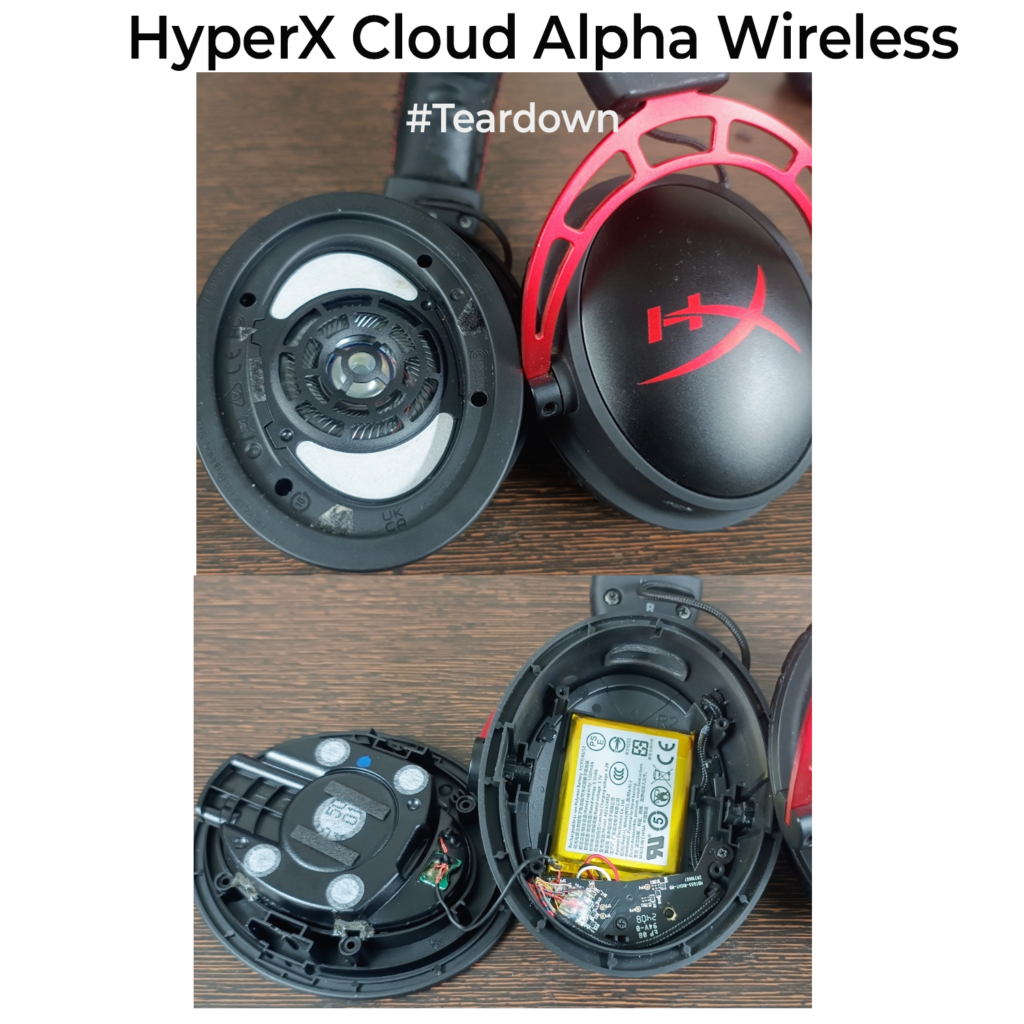
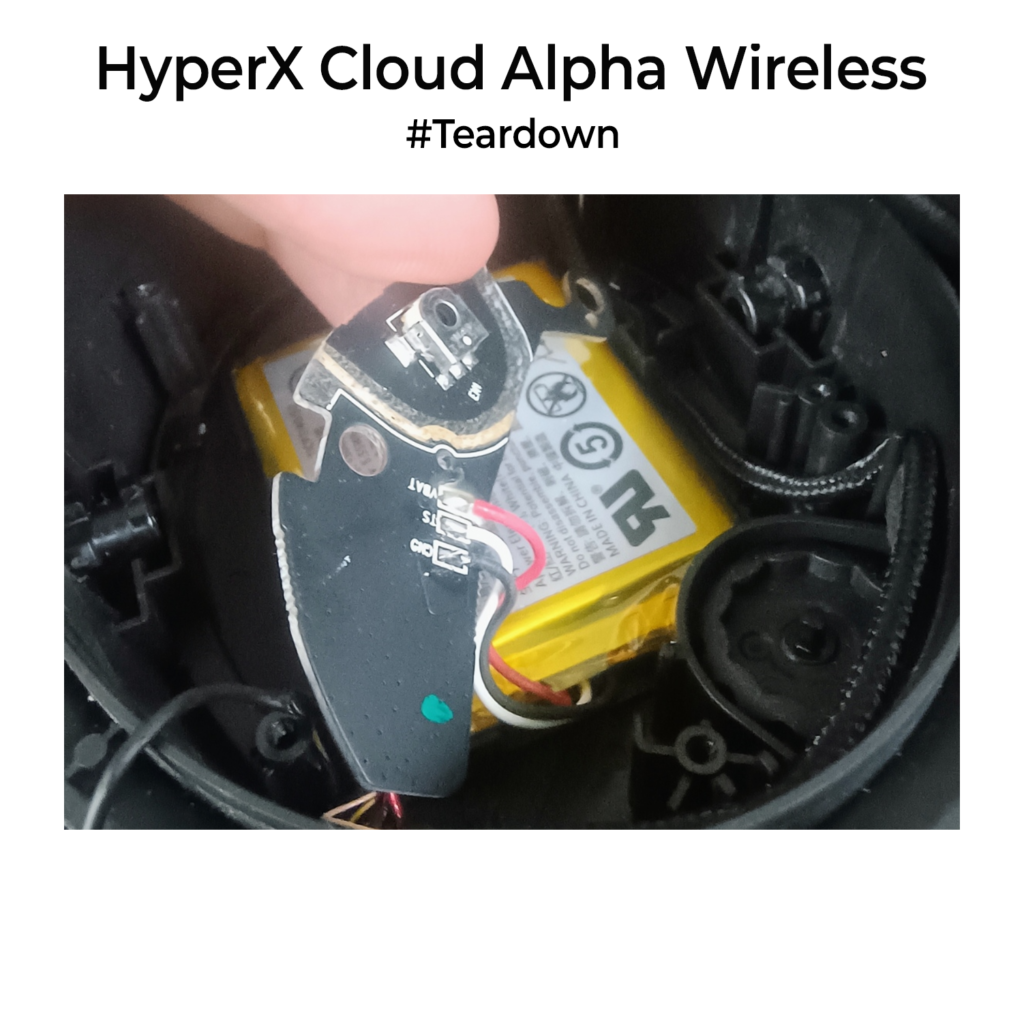
It seemed hung. That’s when it hit me. Its actually hung in some weird software state which prevents the button press from triggering. My guess was that the microcontroller had landed in some bad state. I can’t reset it because there is no physical battery cutoff button. With that in mind, I disconnected the battery by desoldering the ground line, then soldered it back. Instant recovery. The controller rebooted, and the headset came back online as if nothing had happened.

As a hardware designer, I think products with soft power control should always have a recovery path. A hidden reset switch, a battery disconnect or at least a watchdog timer in firmware would have prevented this. (Refer to older posts to learn more about watchdog timers). It is one of those small design choices that users never notice until it is missing.  

I have updated the headset firmware since then, so maybe this bug is fixed now in software. Still, this felt more like an engineering oversight from the team.

BTW as I always say, DO NOT be scared to open up electronic things. Try to understand them before you replace them. A lot of dead gadgets are just one power-cycle away from working again.
If you liked the post, Share it with your friends!

Teardown & Repair: Asus Laptop

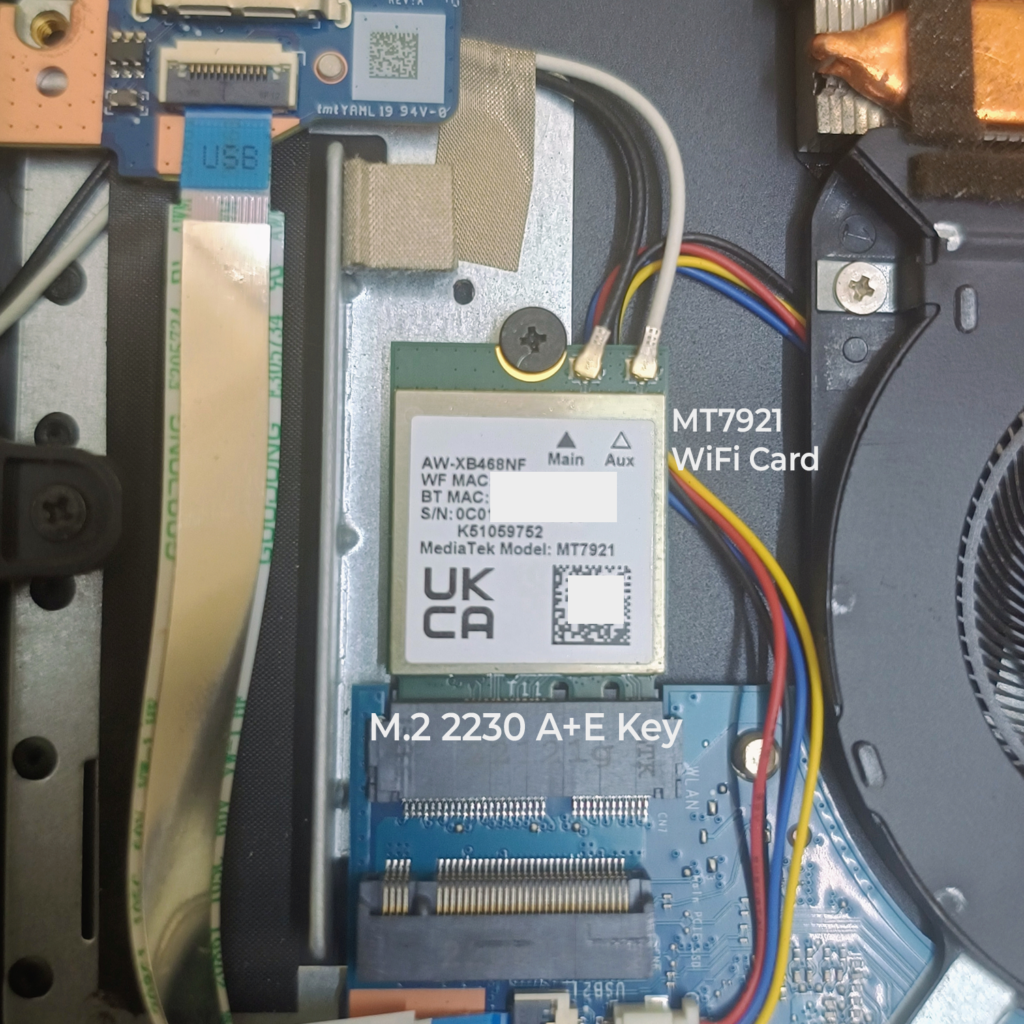
Finally, I took the time to fix my ASUS TUF A15 which has been one of my daily-driver laptops. The wireless had been problematic for a long time, and I decided to do a hardware swap.

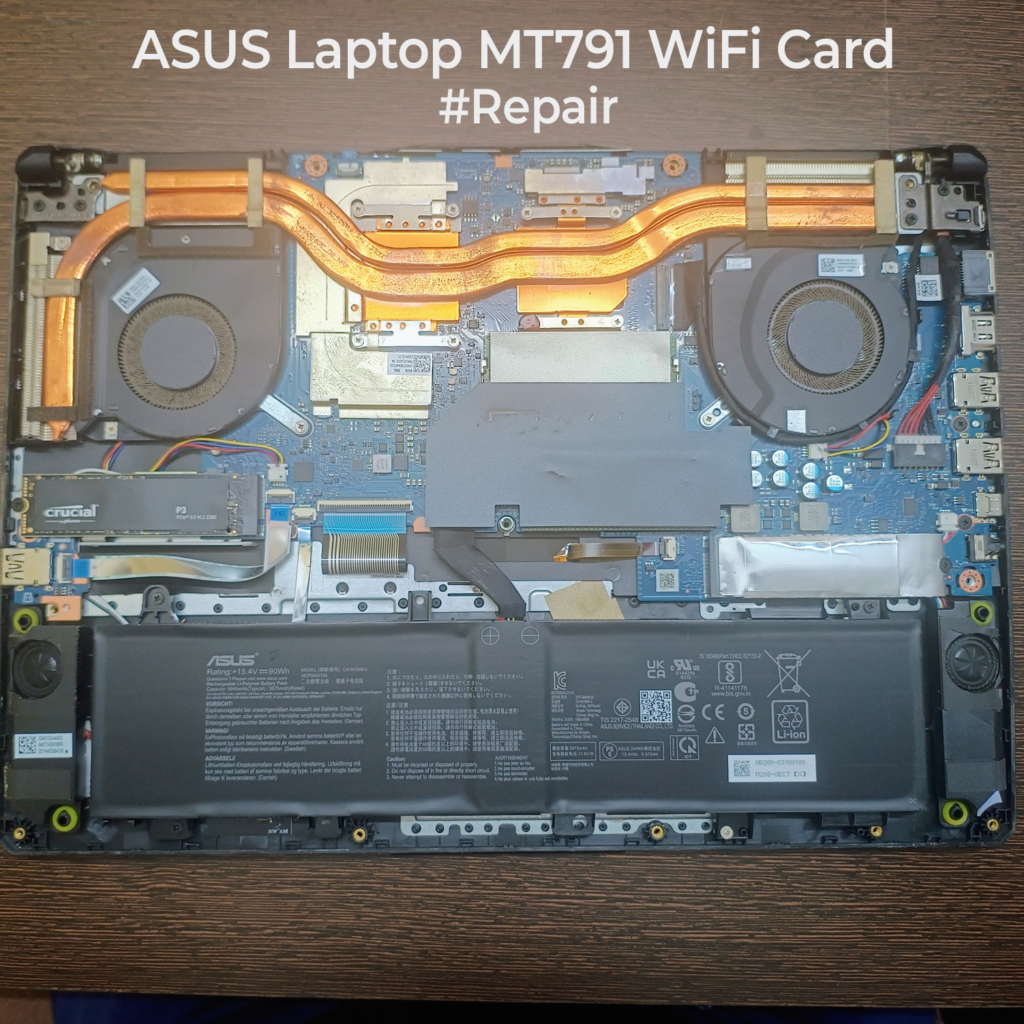
The problem was the WiFi/Bluetooth card, a MediaTek MT7921. It’s a bad chipset. You will find many reports online of WiFi disconnects and the laptop sometimes losing WiFi after waking from sleep. These modules are M.2 2230 A+E Key cards that plug into the laptop’s WiFi slot.

I decided to replace it with an Intel AX210 (WiFi 6E). The swap process is simple. Flip the laptop, remove the bottom cover, and lay the screws out on a flat surface in the same pattern they came out. Mostly, screw lengths differ, so process this prevents reassembly mistakes.

Now, the step most people skip. Always disconnect the battery before touching the card. When you slide an M.2 module in or out, it is easy to slip and short nearby pads with a tool. You do not want live power rails during that moment. On my unit, the WiFi card sits below the SSD, so it likely sees extra heat cycling (Probably a reason why it fails!). Pop the antenna connectors straight up, remove the single hold-down screw, swap the card, then reconnect the two antennas exactly as labelled. One would be the 2.4GHz and the other the 5GHz one.

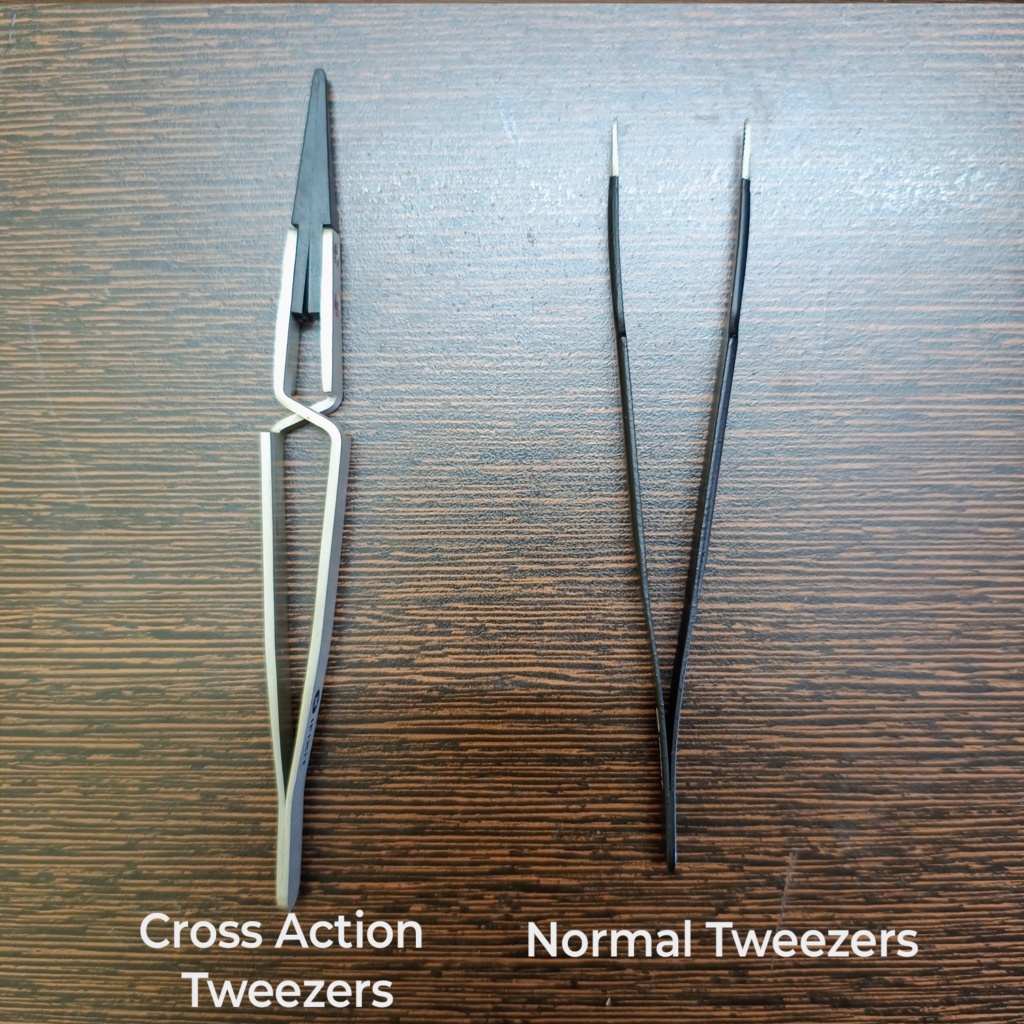
Tweezers help for antenna routing and tiny connectors. Invest in a good pair. You have a normal one and a cross-action one. Cross action tweezers are great because they hold position without constant finger pressure. Most people don’t know of this.

Once the card is in, reassemble, do a quick dusting, then install the driver package and reboot. If you download drivers ahead of time, the first boot after the swap will be smooth.

The only note I want to give you is that, build the habit of debugging before you outsource to a shop. Stay curious, read service guides, and invest in a decent screw set at home. The repair shop should be your last option. Open things up and don’t be scared.

BTW: On most laptop WiFi cards, WiFi uses PCIe lanes, but Bluetooth is a separate USB connection on the same M.2 slot. Only WiFi is PCIe.

If you liked the post, Share it with your friends!
1 2 3 21